Overview
Mount Image Pro™
Mount Image Pro (MIP) allows forensic image files to be mounted as Windows drives, providing full access without altering the data. It supports multiple formats and enables browsing, analysis, and export within a secure forensic environment.
- Mounts: .E01, .Ex01, .L01, .Lx01, .AD1, etc.
- Access full image content safely
- Browse with Windows programs
- Run third-party applications
- Export files securely
- Access system, deleted, and unallocated data
- Full command-line support
- Powers third-party forensic tools
Key Features
Mounts the following image file types:
- Access Data .AD1
- Apple .DMG
- EnCase .E01, .Ex01, .L01, .Lx01
- Forensic File Format .AFF and .AFF4
- ISO (CD and DVD images)
- Microsoft .VHD, .VHDX
- NUIX MFS01
- ProDiscover
- SMART
- Unix/Linux DD and RAW images
- VMWare .VMDK
- Xways Container File .CTR
Supports access to Bitlocker or FileVault drives (password must be known).
Forensically sound:
- Mount as read only or simulate disk writes into a cache file.
- Show or hide deleted files and system files (including unallocated clusters).
- Mount files without Windows security permissions.
Full command line support with the ability to batch processing.
Mounts all common file systems, including:
- NTFS, FAT, FAT16, FAT32, HFS, APFS, EXT2/3/4;
- Can be used with third party file-system drivers for HFS and Linux EXT2/3/4.
When used with the GetData servlet, MIP can securely mount a remote physical or logical disk (accessed via IP address using UDP).
Once the remote disk is mounted it can be acquired with FEX Imager, FTK Imager or processed with any forensic tool.
System Requirements
Minimum recommended system requirements:
- i7 CPU
- Windows 7-10 Operating System
- 8 GB RAM
Mount image Pro should be run as local administrator to ensure sufficient permissions to access devices.
Screen Shots
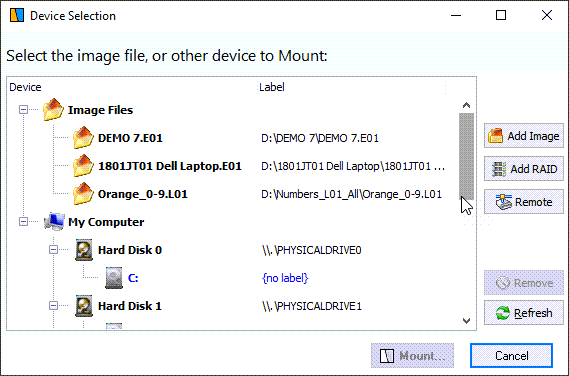
Select a device to mount:
Mount Options:

Mounted devices:

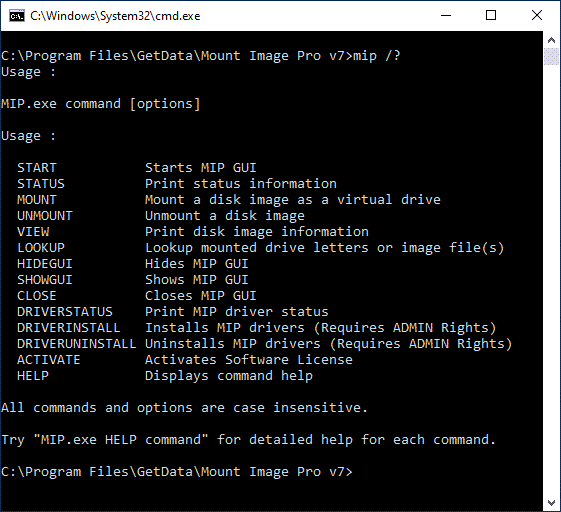
Mount Image Pro Command Line
Purchase & Licensing FAQs
License Type
A Mount Image Pro license is a perpetual license*. The license does not expire.
A purchase includes a 12 months Software Maintenance and Support (SMS). SMS provides regular software updates and access to technical support. Additional SMS can be purchased and is added from the existing maintenance date.
Mount Image Pro Software Key (Virtual Dongle)
Mount Image Pro is sold with a software activation key (a virtual dongle). The key is provided electronically at the end of the purchase process.
The software key is hardware locked to a computer. It may be moved using the GetData License Manager (see below).
Wibu CodeMeter USB Activation Dongle (Wibu Dongle)
There is an option to add a Wibu Dongle to a Mount Image Pro purchase. The dongle contains a separate second license. A license on a dongle is easily transported from computer to computer. When inserted, the software is activated. When removed, the software returns to evaluation mode.
A Wibu Dongle can hold one or more licenses. It can be:
- Connected locally (i.e. plugged into the computer in use); or
- Connected to a remote computer and accessed over a network.
License Management
Wibu licenses are managed using the GetData License Manager software (download here). The License Manger is used to:
- View license information.
- Add a license to a Wibu Dongle.
- Rename a dongle.
- Apply firmware updates.
A lite version of Wibu CodeMeter software is installed with GetData products. A full version of CodeMeter User Runtime for Windows is available from the Wibu website. It can be used to:
- Configure a computer and dongle to be used as a license server;
- Configure a computer to be used as a network client;
- Rename a dongle, apply firmware updates, and other maintenance functions.
Learn more about license management here.
License Delivery
A Mount Image Pro software key is delivered electronically at the end of the purchase process.
Wibu Dongles are shipped worldwide by FEDEX. Web tracking information is provided for each shipment. Courier delivery costs are included in the checkout process.
Purchase
Maintenance Renewal
Download
Mount Image Pro 64 bit
Setup Instructions:
- Download the setup executable and follow the on-screen installation instructions.
- A reboot is required to install 2 x mount drivers.
- Launch MIP from the desktop icon and confirm working driver status in the information bar at the bottom of the GUI.
Important:
If migrating from MIPv6 to MIPv7 follow this procedure to avoid driver conflicts:
- Ensure MIP is not running. If the MIP icon appears in the Windows system tray (bottom right corner of Windows Desktop), right click on the icon and select Exit.
- Go to the Windows Control Panel and uninstall MIP (both v6 and v7 if they are present).
- Reboot the computer (this is an important step to clear the mount drivers).
- Install MIPv7 as local administrator.
- Reboot the computer (this is an important step to install the MIPv7 drivers).
Change Log
29 August 2025 – v7.1.2.1976
- Updated support for AFF3 and AFF4.
8 August 2025 – v7.1.2.1974
- Updated MBR recognition.
- Fixed issue mounting SMART.S01.
15 April 2025 – v7.1.2.1971
- Add /OFFLINE switch to setup.
18 October 2024 – v7.1.2.1961
- Updated license activation components.
1 October 2024 – v7.1.2.1961
- Added CLI unmount for CDROM.
22 September 2024 – v7.1.2.1960
- APFS updates.
- AFF4 updates.
- Bitlocker updates.
4 September 2023 – v7.1.2.1945
- Improved Mount Speed.
- Fixed validation issues mounting XWays.CTR files.
8 August 2023 – v7.1.2.1938
- Updated License Manager.
19 July 2023 – v7.1.2.1937
- Improved handling of duplicate files created in logical evidence containers (AD1, L01, CTR).
18 August 2022 – v7.1.2.1929
- Improved handling of invalid Windows characters in file and folder names (e.g. email subject). Replaced invalid characters with underscore.
- Improved handling of duplicate files in folders (not allowed in Windows) by incrementing a copy number.
- Other minor updates.
17 May 2021 – v7.1.2.1909
- Updates for Bitlocker.
- Updates for APFS and FileVault.
- Fixed issue where mount drivers were no longer displaying as running.
- Wibu Codemeter updates.
- Other minor updates.
28 Sep 2020 – v7.1.2.1886
- Fixed issue adding decrypted Bitlocker partition on ‘File System’ mount.
29 Jun 2020 – v7.1.2.1885
- Improved memory management.
- Fixed issue mounting remote logical drive via servlet.
26 May 2020 – v7.1.2.1882
- Improved Remote connection speed.
21 Apr 2020 – v7.1.2.1881
- Remote – Updated protocols (increase remote serve-let connection speed).
09 Apr 2020 – v7.1.2.1880
- Updated network config for ‘Remote’ drives.
8 Nov 2019 – v7.0.0.1865 – Beta
- Available for all MIP users with valid maintenance.
- AFFv4 support added.
- APFS support added.
- Improved Bitlocker support.
- Improved EXT4 support.
- Improved VDI\VHDX support.
14 Sep 2019 – v6.4.2.1859
- Updated codemeter network activation component.
15 Aug 2018 – v6.4.2.1855
- Fixed activation issues.
22 May 2018 – v6.4.2.1843
- Improved CMD Pipe Commands.
10 November 2017 – v6.2.0.1775
- Fixed GUI error with Add File button.
1 November 2017 – v6.2.0.1774
- Increased speed of File System mount file access.
- Improved support for write blocked physical drive Live Boot in Forensic Explorer.
13 June 2017 – v6.2.0.1701
- Improved mount speed.
- Minor GUI changes.
13 Mar 2017 – v6.2.0.1691
- Added support for Microsoft BitLocker drives.
31 Jan 2017 – v6.2.0.1681
- Fixed issue with logical mount drivers (L01, AD1).
12 Dec 2016 – 6.1.3.1678
- Update Wibu CodeMeter activation:
– Solves issue activating trial license;
– Solves issue of activation drop out.
16 Nov 2016 – 6.1.3.1663
- Update to Wibu CodeMeter network dongle activation.
25 October 2016 – 6.1.3.1662
- Fixed error with Unicode characters in file paths.
22 August 2016 – 6.1.3.1652
- Increased PIPE size for CMD Line client sending partition information to the GUI.
19 July 2016 – 6.1.3.1649
- Fixed Wibu CodeMeter activation error causing evaluation version to stop at splash screen.
24 June 2016 – 6.1.3.1647
- Improved mounting of images with 4k sector size.
- Improved mounting of images using GPT using EFI.
- Identify bootable partitions in CMD.
15 June 2016 – 6.1.3.1644
- Fix error mounting LX01 files > 3TB.
- Updated Wibu CodeMeter activation drivers.
02 May 2016 – 6.1.3.1641
- Added support for VHDX file type.
- Sorted supported file extension list.
- Updated Wibu CodeMeter licensing.
- Other minor updates and enhancements.
23 February 2016 – 6.1.3.1626
- Fixed GUI sizing on install.
15 January 2016 – 6.1.3.1625
- Improved mounting of L01 and Lx01 images.
- Updated to Microsoft SHA256 installation certificate.
4 December 2015 – 6.1.3.1618
- Improved handling of DMG images.
17 November 2015 – 6.1.3.1611
- Fixed error with MIP hanging at splash screen.
10 November 2015 – 6.1.3.1610
- Fixed error mounting large DMG files.
- Improved handling of Windows compressed files.
5 November 2015 – 6.1.3.1602
- NUIX file save driver update.
- Improved handling of constructor files for segmented DD images.
1 November 2015 – 6.1.3.1601
- Improved activation messages in splash screen.
23 October 2015 – 6.0.9.1595
- Fix issue with error on first CMD run prior to a GUI launch.
- Removed incorrect evaluation message from splash screen.
12 October 2015 – 6.0.9.1588
- Command line MIP STATUS now returns driver versions and activation status.
07 October 2015 – 6.0.9.1586
- Updated setup certificate to remove driver install notifications.
- Fixed security permission issue creating registry key on Windows 8 install.
01 October 2015 – 6.0.9.1582 (MIPv6 Release)
- 64bit native multi-threaded
- Windows 10 and Server 2008 – 2013 support
- Added support for NUIX MFS01 and XWAYS CTR images
- Caching of disk writes
- CMD line interface update
- File system traverse speed increase
- Mount images into folder mount points
- Remove attributes and security permissions from mounted files
See other Get Data Products
GetData Forensics provide cutting edge software and solutions to reduce forensic backlogs, streamline digital investigations and maximize results.

FEX Cloud Capture
About FEX Cloud Capture™ (free) FEX Cloud Capture™ is a software tool for the acquisition of data stored on...
Learn More
FEX Imager™ (free)
This forensic imaging tool captures bit-level images with full hash verification (MD5, SHA1, SHA256) from physical drives, logical...
Learn More
FEX Memory Imager™ (free)
FEX Memory Imager captures the physical RAM of a running computer, enabling recovery of volatile artifacts critical to...
Learn More