Activation
Wibu CodeMeter Activation
GetData Forensics products use the Wibu CodeMeter activation system (www.wibu.com). It is recommended to run the latest versions of:
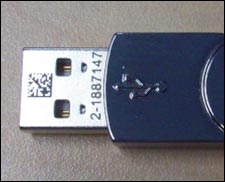
A Wibu Codemeter dongle is identified by a ID number. The number can be located:
- Engraved on the USB insert.
- Displayed in the GetData License Manager software.
- Displayed in Codemeter Control Center software.
An Internet connection is required:
- Remove other Wibu CodeMeter dongles (e.g. EnCase, FTK).
- Insert the Wibu CodeMeter dongle.
- Run the GetData License Manager. The dongle shall appear in the left hand column. If maintenance is expired a red icon will display and the maintenance date will appear in red, as shown below:
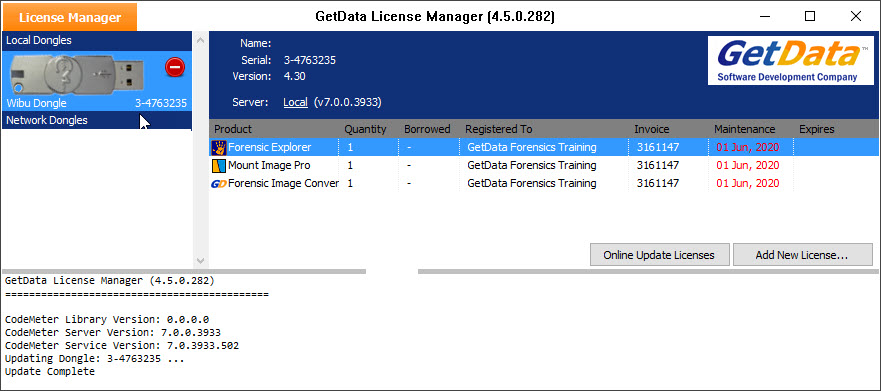
- IMPORTANT: When applying maintenance do not delete anything from the dongle. Maintenance is added to the existing license.
- Click the Add New License button. In the search window, enter the maintenance renewal key (in the format xxxx-xxxx-xxxx) and click the search button.
- The search should return a ‘[RENEWAL]’ license, as shown below. If the search does not return a result, it is likely that firewall settings are blocking communication with the GetData activation server.

- Click the Apply button to apply the renewal key.
- The date in the Maintenance column should now reflect the new maintenance date.
Alternate method using an ‘Activation Request File’:
- Right click on the picture of the dongle in the GetData License Manager and select ‘Export Activation Request’ from the drop-down menu. This will export a file to the computer with a name in the format ‘GetData [dongle number][date].GDActRequest’.
- Transport this file to an online computer. Upload the file to: https://support.getdata.com/offline-wibu.php. The purchase email address and new license key are required to be entered into this page. The page will validate the request file and return a ‘response’ file.
- Run the GetData License Manager, right-click on the picture of the dongle and select ‘Import Activation Response…’ from the drop down menu. Select the response file and the dongle license will be updated.
An Internet connection is required:
- Remove other Wibu CodeMeter dongles (e.g. EnCase, FTK).
- Insert the Wibu CodeMeter dongle.
- Run the GetData License Manager. The dongle shall appear in the left hand column:
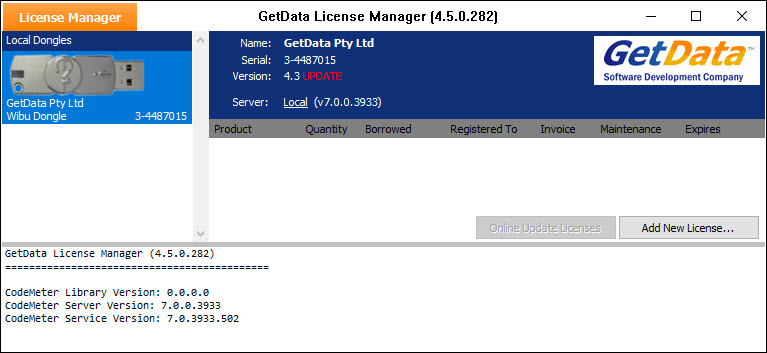
- Click the Add New License button.
- In the search window, enter the license key (in the format xxxx-xxxx-xxxx) and click the search button.

- The search window will identify the license/s associated with the key. If the search does not return a result, it is likely that firewall settings are blocking communication with the GetData activation server.
- To apply a single license to the dongle, click the Apply button.
- To apply multiple licenses to the dongle, use the counter (or maximum button) at the bottom of the screen.
- The license/s will then be written to the dongle. Adding a Forensic Explorer key will automatically add Mount Image Pro and Forensic Image Converter licenses.
Remove other Wibu CodeMeter dongles (e.g. EnCase, FTK):
- Insert the Wibu CodeMeter dongle.
- Run the GetData License Manager.
- The dongle shall appear in the left hand column: Right-click on the picture of the dongle in the left hand column.
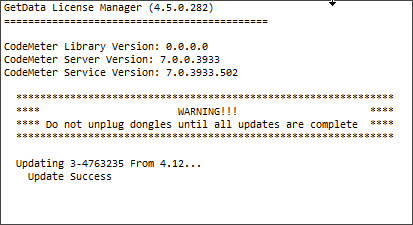
- Select Update Firmware from the drop down list. The bottom window of the License Manger will show the status.
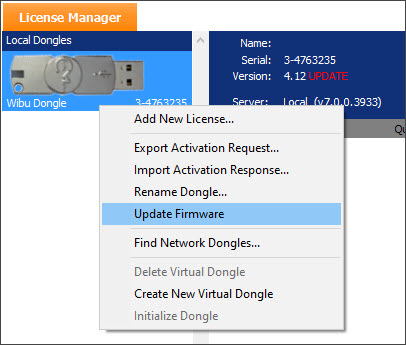
- IMPORTANT: Do not remove the dongle during the update process.
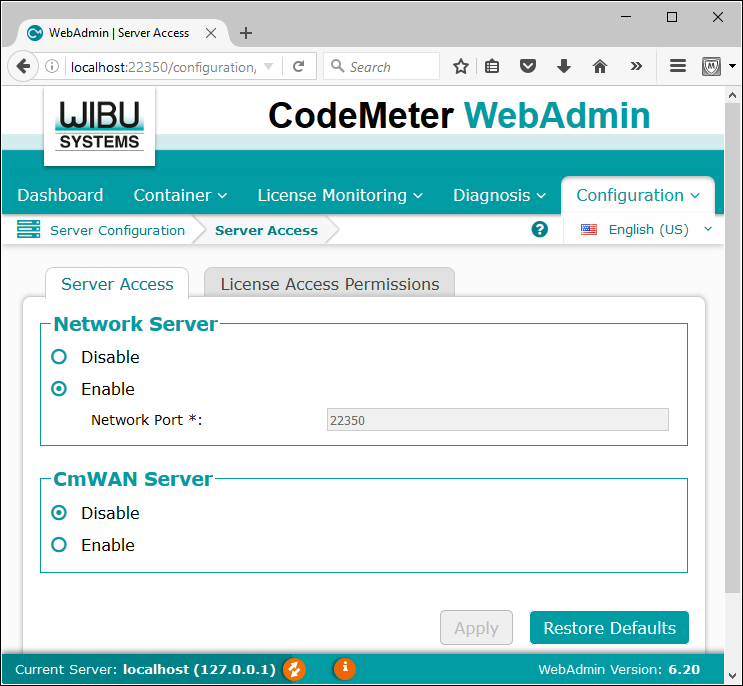
On the computer to be used as the Network Server:
- Install the latest version of CodeMeter Runtime for Windows User.
- Browse to http://localhost:22350 to open CodeMeter WebAdmin.
- Select Configuration > Server > Server Access from the menu.
- In the Network Server window click Enable and press the Apply
- Ensure that the selected Network Port 22350 is not blocked by your firewall.
- Restart the CodeMeter service by rebooting the computer; Or:
- Run the CodeMeter Control Center;
- Select Process > Stop CodeMeter Service;
- Then Start CodeMeter Service.
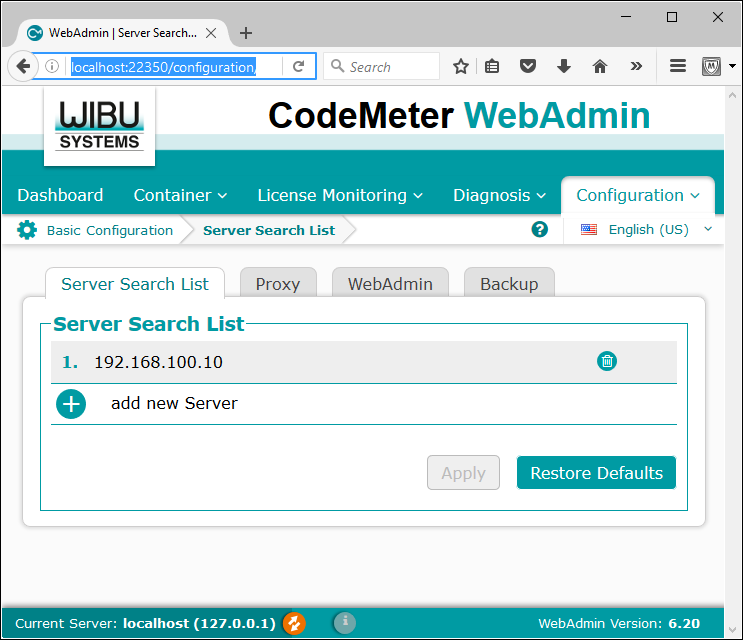
On the workstation:
- Install the latest version of CodeMeter Runtime for Windows User.
- Browse to http://localhost:22350 to open CodeMeter WebAdmin.
- Select Configuration > Basic > Server Search List from the menu.
- If the license server is on the same sub-domain, then Automatic server search (255.255.255.255) will suffice, or add the IP address of the Network Server and press Apply.
- Start Forensic Explorer. It should detect the remote dongle license and activate.
Do you need support on our products?
Our support team is available by email or phone Monday to Friday from 8:30 am to 5:30 pm. We aim to respond to new tickets within 24 hours or the next business day.
Contact our support team